


Skip to content
plugins
Buy
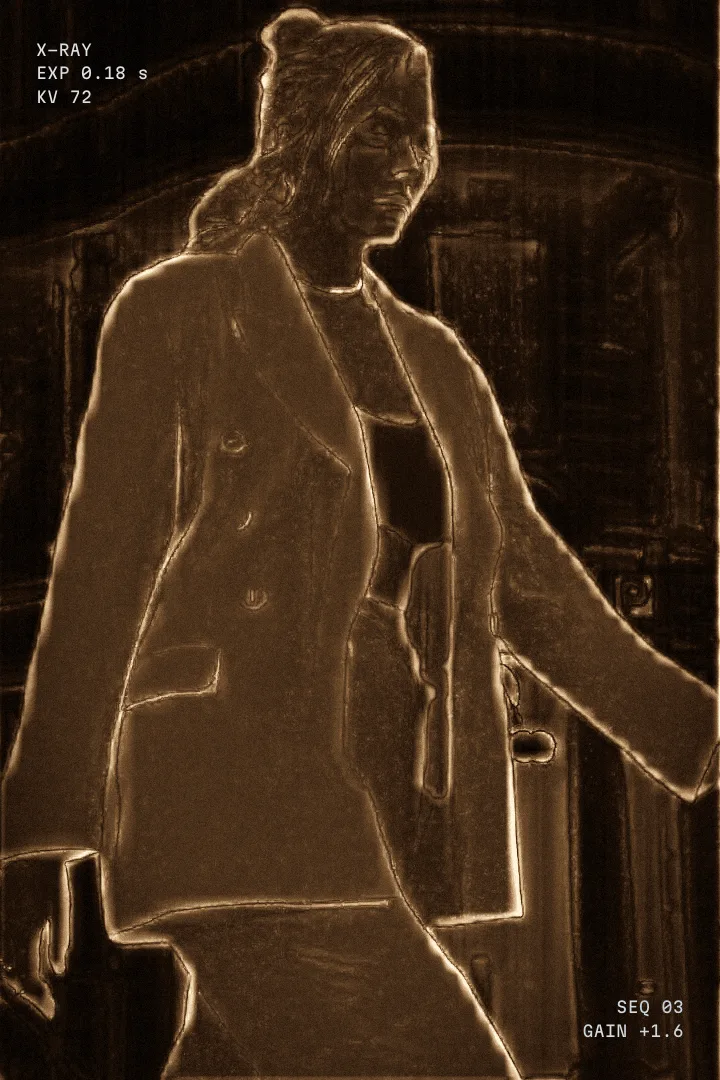
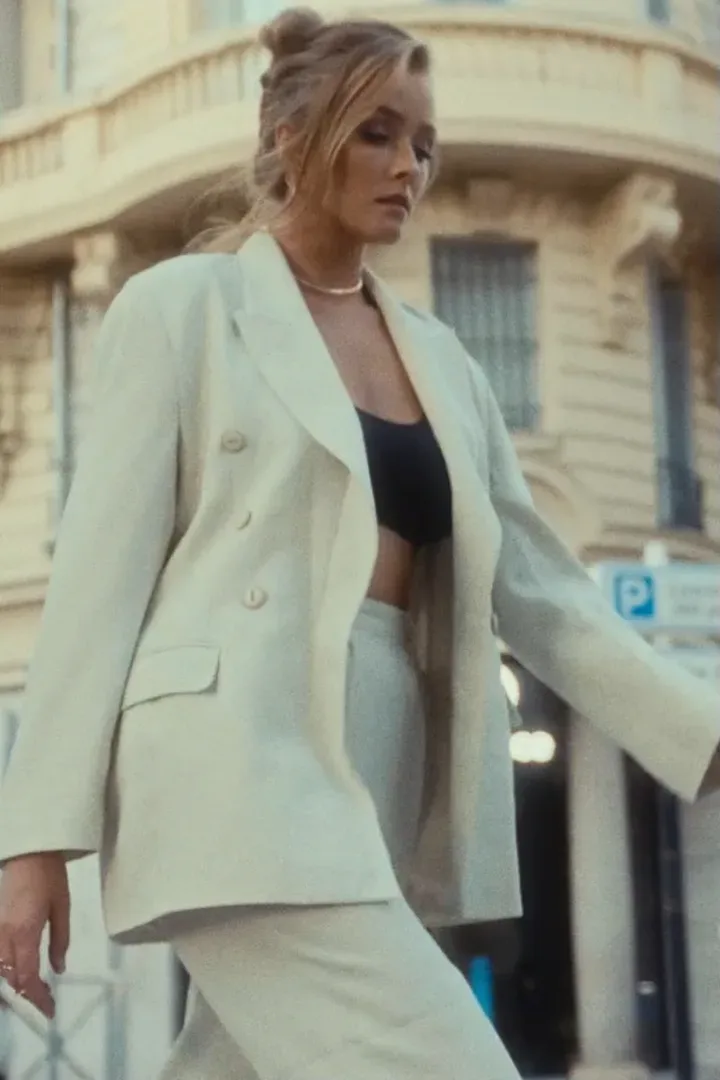
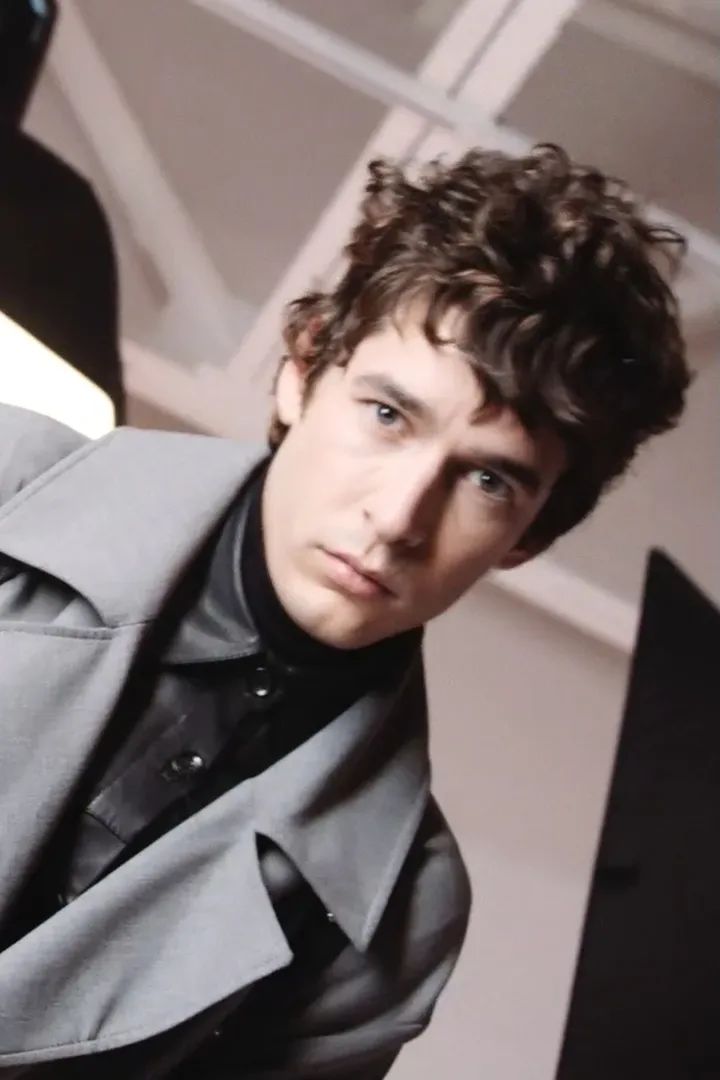
A woman in a white suit on a city street, cut through STAGO looks

STAGO

Effects for DaVinci Resolve, made in the edit bay. They live on the Edit page: drop one on an adjustment clip and keep cutting.

Works in DaVinci Resolve Studio 21

Plugins by STAGO, the platform for video productions: CRM and tools for the edit.

Effects

Every plugin installs into one STAGO group in Resolve's Effects library, with its own installer for Mac and Windows.

  1. Afterimage

    Flash-frame looks for DaVinci Resolve

    Works in DaVinci Resolve

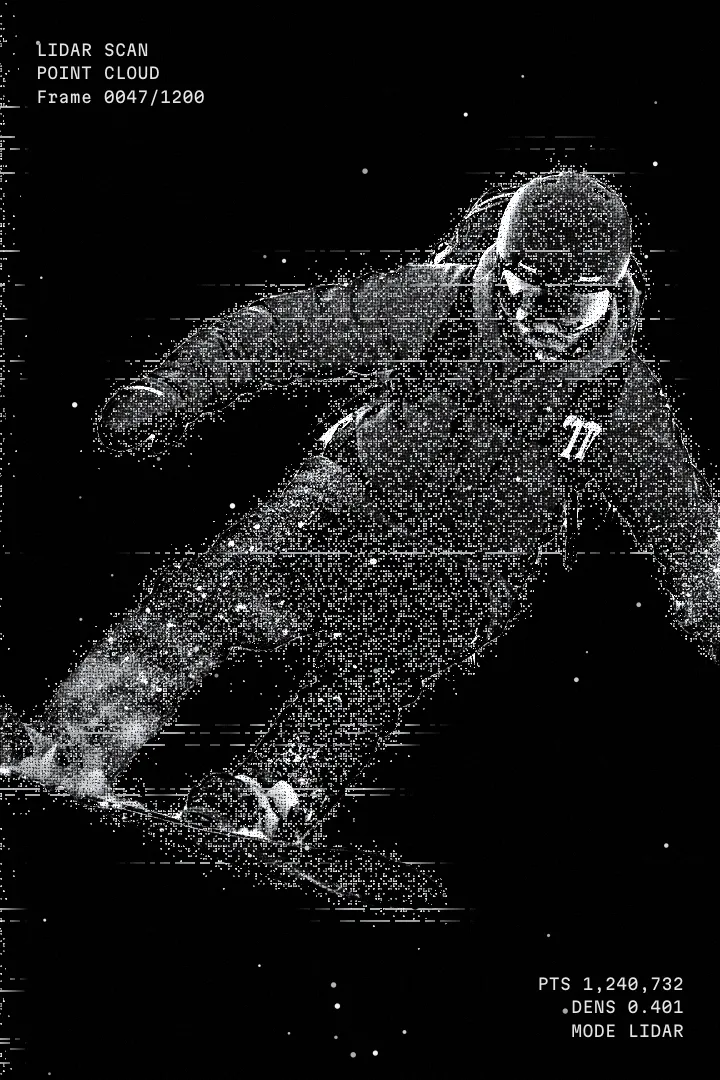
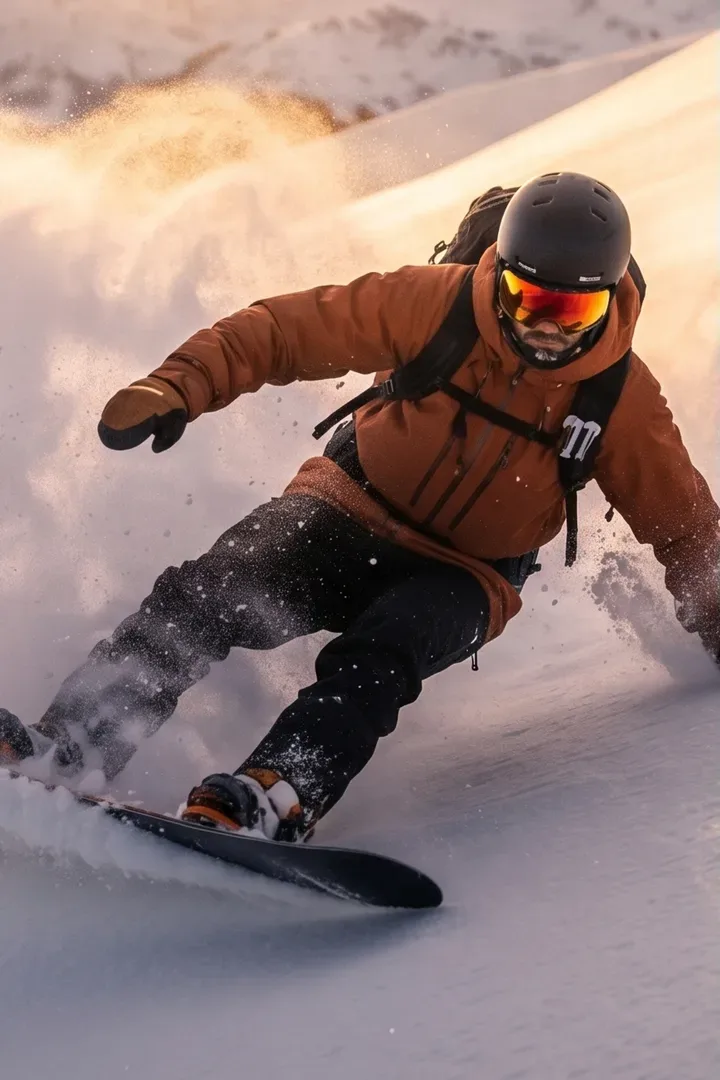
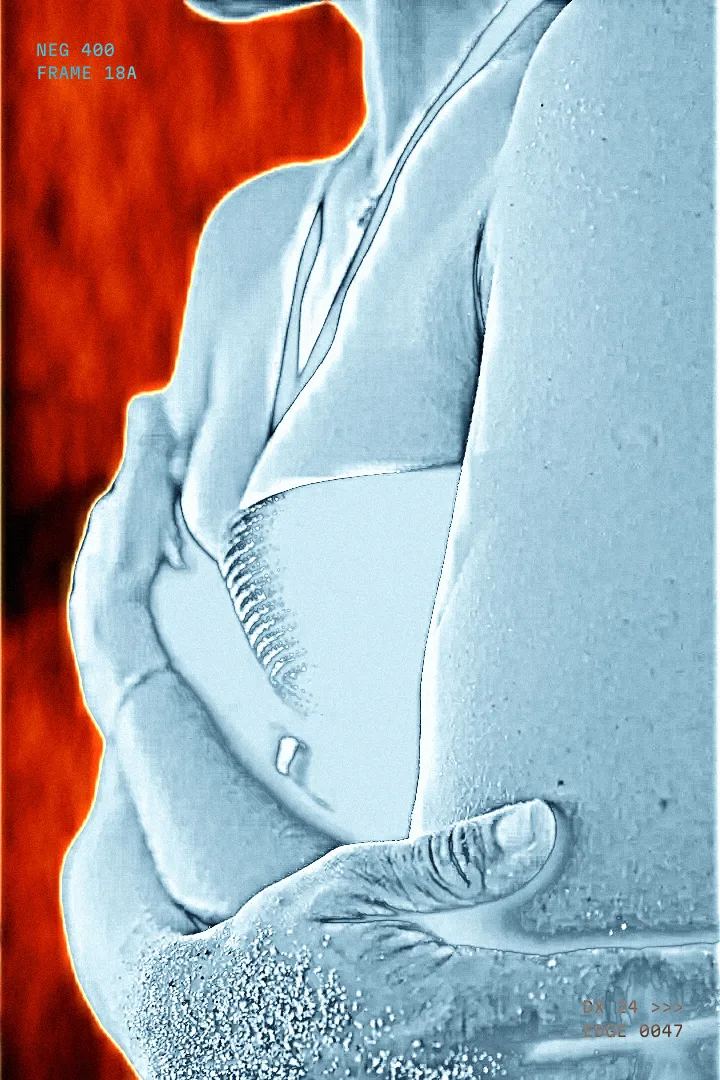
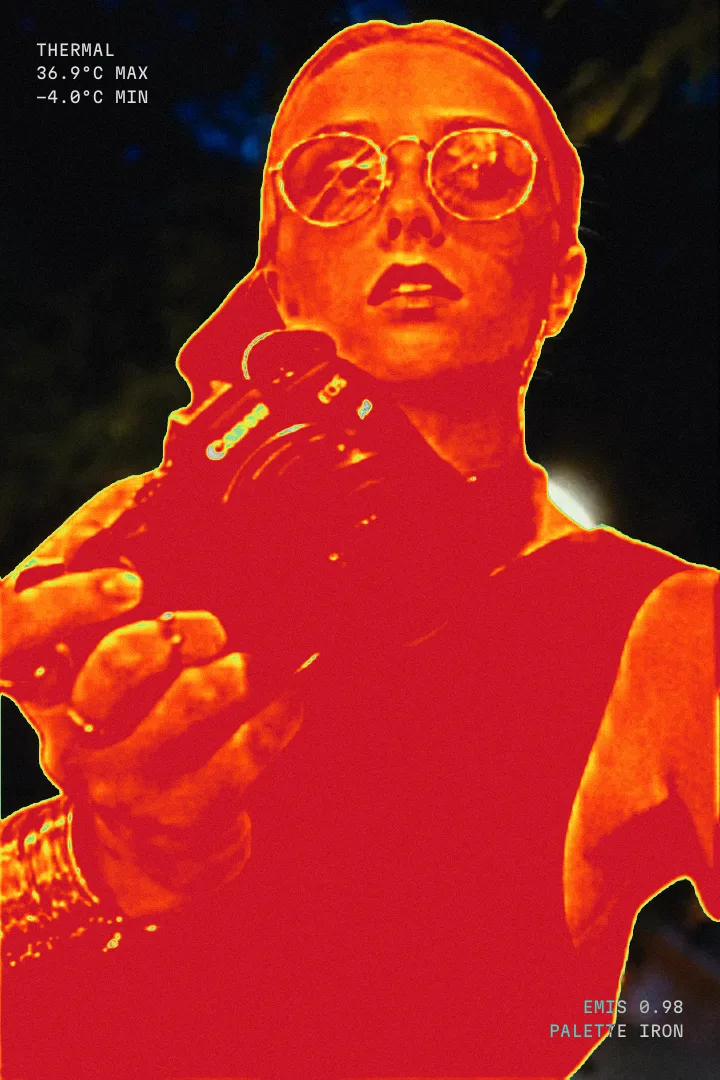
    LiDAR, X-Ray, thermal and receipt-print flash frames cut into your edit from an adjustment clip. The subject is cut out automatically.

    Afterimagev2.0
    Up to 12 stills per adjustment clip, each flashing in a look for 0.1–3 s.
  2. Sensor

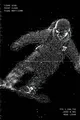
    Machine-vision looks on moving footage

    Works in DaVinci Resolve

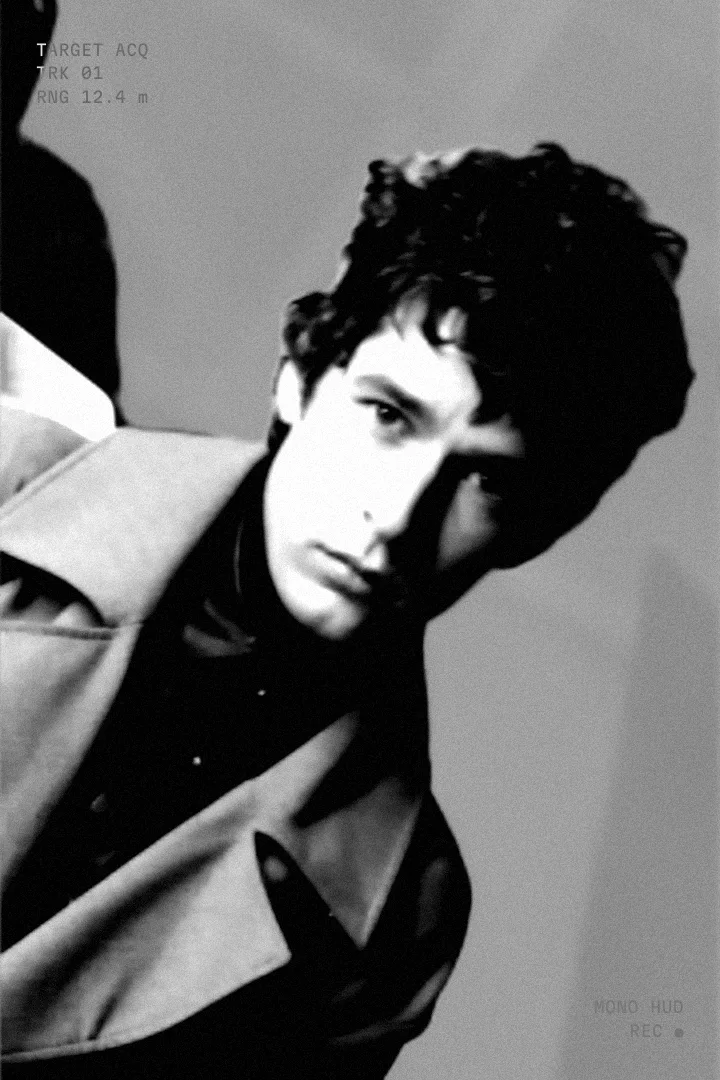
    The LiDAR, X-Ray and thermal looks on the video under an adjustment clip, frame by frame, with the subject found on every frame.

    Sensorv2.0
    The Afterimage looks on the footage under the adjustment clip, for its whole length.
Host
DaVinci Resolve Studio 21
Page
Edit · on an adjustment clip
Library
Effects → Fusion Effects → STAGO
Platforms
macOS · Windows (new, in testing)
Updates
Version feed per effect at /updates

Deliver

Every STAGO plugin in one render queue. Installers for Mac and Windows in each download.

Render Queue3 jobs · USD
  1. Job 1Ready

    Afterimage

    Flash-frame stills on an adjustment clip

    DaVinci Resolve

    • Mac + Windows installers
    • 8 looks, 13 FX, HUD and text
    • Up to 12 images per clip

    $25

  2. Job 2Ready

    Sensor

    The looks on moving footage, for the whole clip

    DaVinci Resolve

    • Mac + Windows installers
    • Subject mask: people or any object
    • Mask Only / Invert effects

    $35

Not sure yet? Try the full plugins free, with a watermark.

Questions

Where do STAGO plugins show up in Resolve?

Every STAGO plugin installs into one group: Effects → Fusion Effects → STAGO on the Edit page. New plugins join the same group, and each one has its own installer and uninstaller.

How do I install it?

Unzip the download and run the installer: install.command on Mac, install.bat on Windows. Restart Resolve and the effect appears under Effects → Fusion Effects → STAGO on the Edit page. An uninstaller sits next to it. Upgrading from an earlier FirstCut build? The installer moves it into the STAGO group for you.

Which Resolve version do I need?

Afterimage is built and tested on DaVinci Resolve Studio 21. It runs as a Fusion effect on the Edit page, so you never have to open the Fusion page.

Does it work on Windows?

Yes. On a Mac the subject is cut out with Apple Vision; on Windows the effect uses Resolve's own Depth Map to separate the subject, with Range and Softness controls to tune it. The Windows build is new and still being tested, so tell us if anything looks off.

Do I need to mask the subject myself?

No. The subject is found automatically on every image or frame. Sensor lets you choose People or Any Object, and its effect can run inside the mask, outside it, or on the whole frame.

How do updates work?

Installed plugins can check this site for a newer version, and every release is listed in the changelog below. Update terms for paid upgrades are announced with each major version.

How do I get help?

Write to plugins@stago.io with your order email and your Resolve version. Installation, licensing and refund questions all go there.

Changelog

Update feed for the plugin: /updates/afterimage.json · /updates/sensor.json

  1. v2.0 Sensor

    Sensor 2.0

    • First release: Afterimage looks on the video under the adjustment clip, for its whole length.
    • Subject mask for People or Any Object, cached so each frame is analysed once.
    • One effect with Mask Only and Invert Mask.
    • Fill / Fit, Position, Blend and Mix controls.
  2. v2.0 Afterimage

    Afterimage 2.0

    • Windows support: subject cut-out through Resolve’s Depth Map.
    • Free Position on any axis, in Fill and Fit.
    • Effects get a movable mask: Mask Position and Mask Scale on the viewer.
    • Thermal Split keeps the grey plate full width with Hot Only.
    • HUD stays the same size when an image is scaled.
    • Installs into its own STAGO group in the Effects library; earlier FirstCut installs move over automatically.
    • Panel credit now reads “Afterimage 2.0 · by STAGO”.